
OliTerm icon OliTerm
Download
A command line for people who love a good GUI

The terminal that remembers, so you don’t have to.

You have servers to look after and no wish to remember IP addresses, admin passwords, the spelling of a command or where a file lives. OliTerm keeps all of it, shows you the files, and comes with an AI agent you simply tell what to do.

Version 1.0 · Requires macOS 26 Tahoe · Free
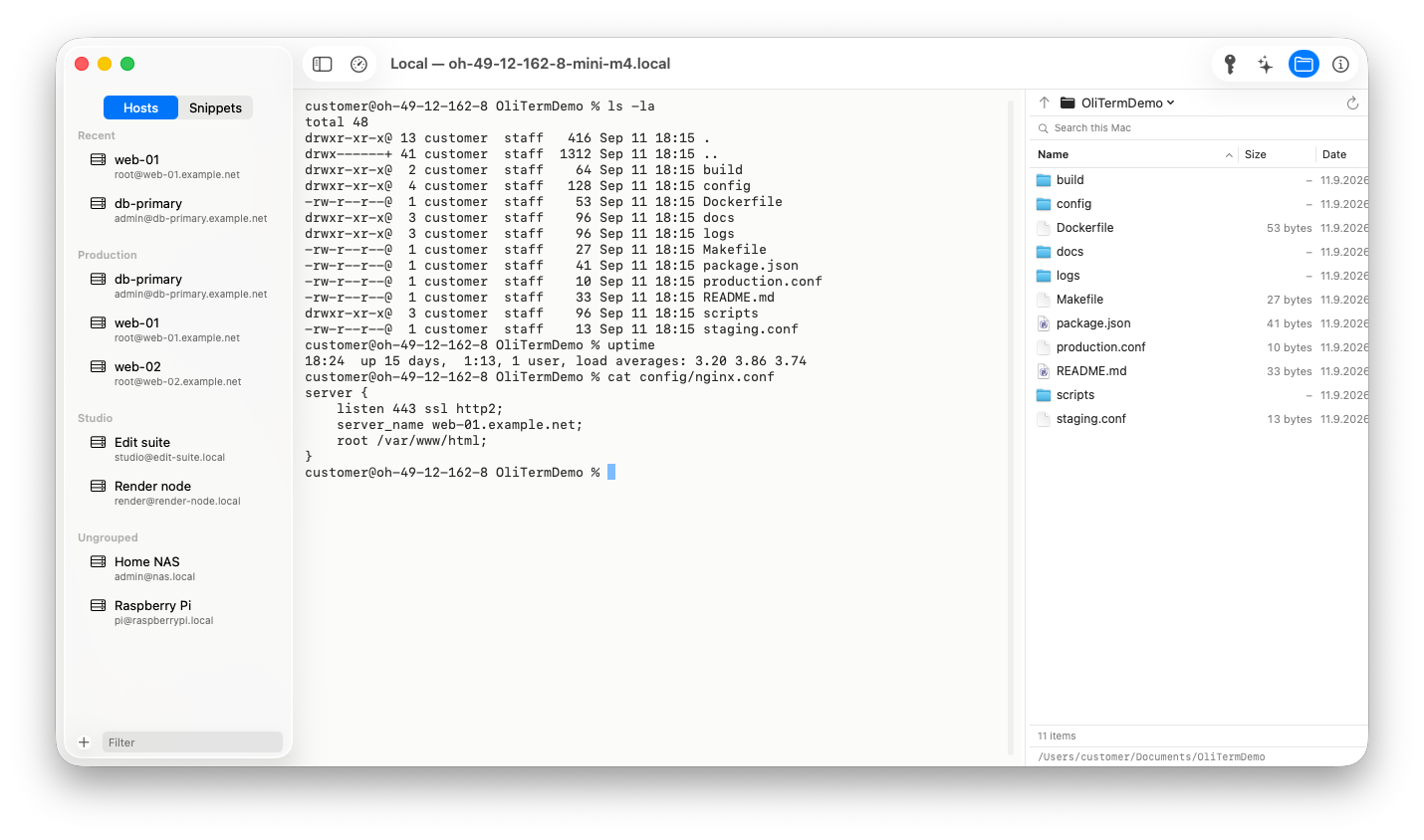
OliTerm window: named hosts sorted into groups in the sidebar, a terminal session, and the file browser pane beside it
No addresses to remember
No passwords to remember
No commands to remember
No paths to type
“Which server was it again?”

Bookmarks for servers.

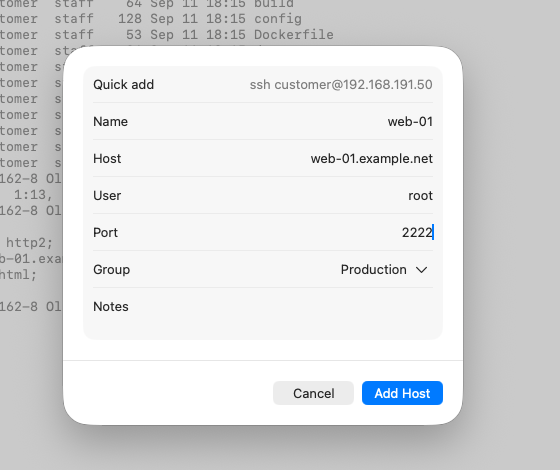
Every machine gets a name, a group and a double-click. Instead of retyping ssh root@203.0.113.10 -p 2222 from memory, paste it once and OliTerm fills in the fields. From then on it is “web-01” in the sidebar, and the title bar reminds you where you are: user, host, DNS name and IP.

Connections run the system ssh, so your ~/.ssh/config, keys and ProxyJump setup keep working as they always did.

The New Host sheet with name, host, user, port and group filled in
“What was that password?”

The Keychain answers the prompt.

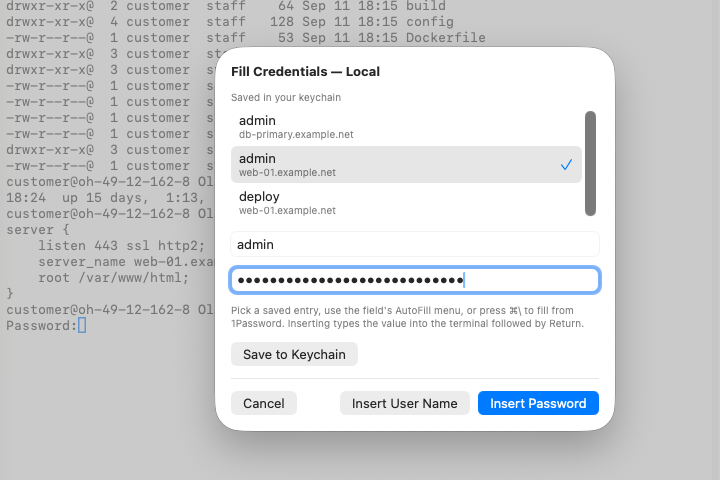
When a host or sudo asks for a password, click the key in the toolbar or press ⌥⌘P. The logins you saved for that host are listed first; Insert Password types it and presses Return for you. Nothing is stored in the app itself, only in your login keychain.

Entries from Apple Passwords appear in the system AutoFill menu, and 1Password fills through its own Universal Autofill.

A sudo password prompt in the terminal and the Fill Credentials sheet listing saved logins
“How did that command go?”

Write it down once.

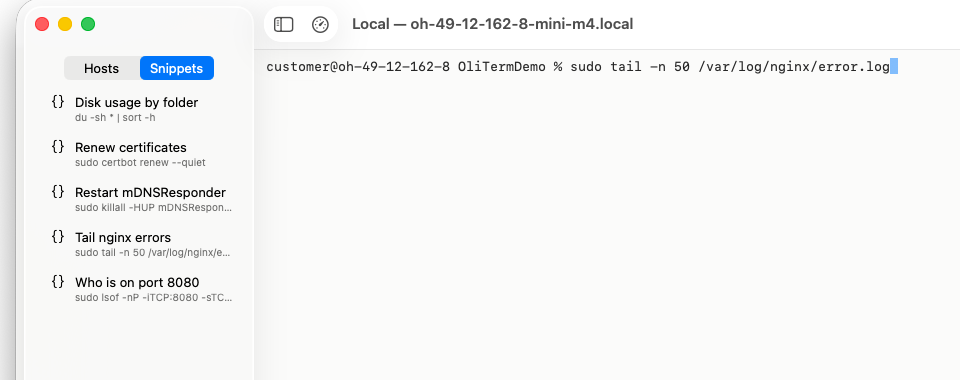
The commands you looked up once and will need again in six months live in the Snippets tab, with a title and notes. Double-click one in the sidebar and OliTerm types it into the terminal and stops there. You read it, change what needs changing, and press Return yourself.

Anything the AI assistant suggests can be saved as a snippet with one click.

The Snippets tab in the sidebar and a snippet typed into the terminal, waiting for Return
“Where did that file live?”

See the files. Drag them around.

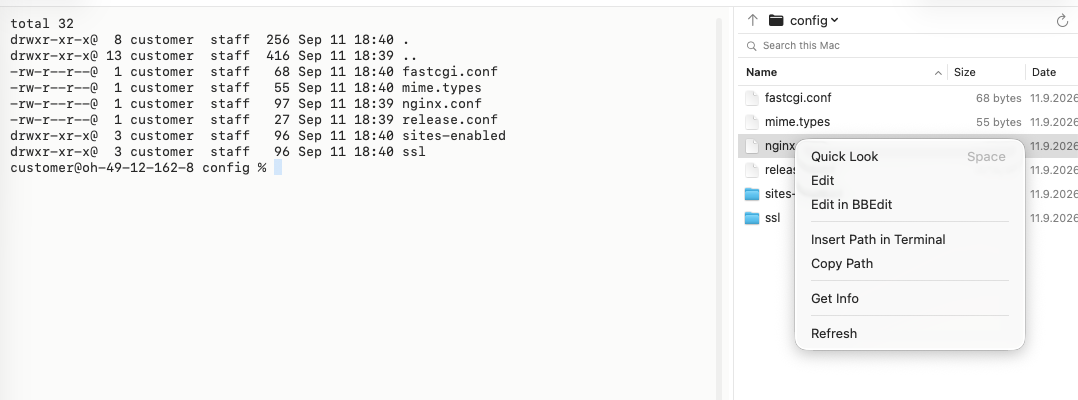
A file pane beside the terminal shows the machine you are on and follows every cd; click a folder and the terminal follows you back. Drag files in to upload, drag them out to download, and open a config in BBEdit or nano. Save, and it is written back to the host.

The pane rides the same SSH connection as your session, so it works on password-only hosts too.

The file browser pane beside the terminal, both in the same folder, with a file’s context menu open: Quick Look, Edit, Edit in BBEdit, Insert Path in Terminal, Copy Path, Get Info
“How do I even do that?”

An assistant that speaks shell.

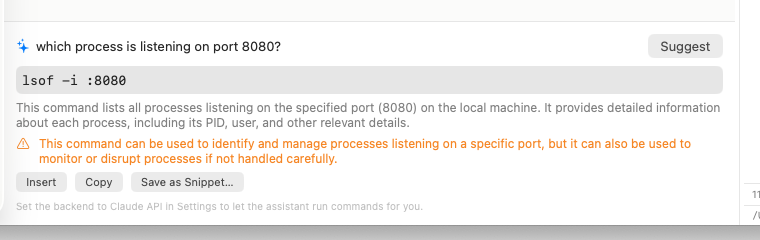
Describe what you need in plain words and get the command with an explanation, from Apple Intelligence on your Mac by default. It can see your recent terminal output if you allow it, so “why did that fail?” is a fair question. The suggestion is typed into the terminal, never executed.

The assistant panel answering a question with a command, an explanation and Insert, Copy and Save as Snippet buttons
“Can you just do it?”

An agent that does the work.

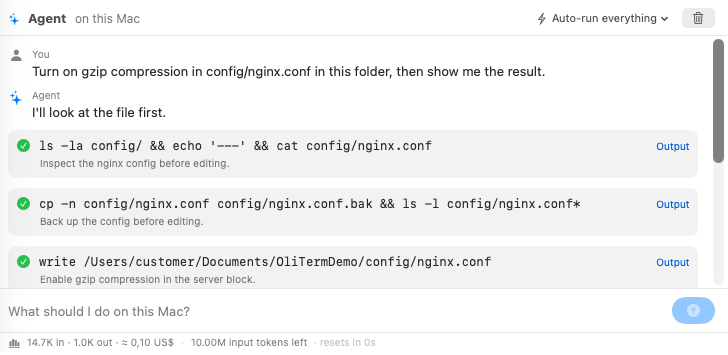
Add a Claude API key and the assistant becomes an agent. Tell it what you want in plain words: “turn on gzip for nginx”, “find out what is filling the disk”, “write me a backup script and put it in cron”. It runs the commands on the host, reads and writes the files, and reports back when it is done.

Everything it ran, and what came back, stays in the panel for you to read. If you would rather be asked before each command, that is a setting.

The agent panel carrying out a task: the commands it ran, their output, and the file it changed

The rest of the everyday.

Small things that add up over a day of hopping between machines.

Host info at a glance

OS, pending updates, uptime, disk, memory, CPU and network for the current host, in a popover from the title bar.

Native tabs and windows

Real macOS window tabs: ⌘T for a local tab, connections open as tabs, and tabs drag between windows like anywhere else.

Links that open a session

Open connections from scripts and other apps with oliterm://connect and plain ssh:// links. New hosts ask before they are added.

Opinions built in

Small, native, and careful with your shell.

You can always see what ran

Snippets and suggestions are typed into the terminal, not run, so the last word is yours. The agent runs things for you, and every command and its output stays in the panel afterwards.

The real ssh, not a copy

Every connection is /usr/bin/ssh in a real PTY. Keys, ssh-agent, ProxyJump and every line of your config behave exactly as in any other terminal.

Nothing to hand over

No account, no sync service. Passwords live in your keychain, the default AI runs on your Mac, and a Claude key is optional and yours.

Who made this

Built by someone with the same problem.

I am a GUI person with machines to look after, and looking after them means the command line: SSH, sudo, a config file in the wrong place, a service that needs a restart. I did not want to remember the addresses, the passwords or the commands, and I did not want to become a Linux administrator to get through the day. So I had Claude Code build the terminal that does the remembering, and gave it an agent that does the work when I say so. If that sounds like your day too, OliTerm is for you.

Oliver Breidenbach

Get OliTerm

Version 1.0 for macOS 26 Tahoe. Updates arrive in the app and install in place.

OliTerm-1.0-24.zip · Free · Signed and notarized · Runs the system OpenSSH