
Agent mode
With the Claude API backend selected, the assistant panel becomes an agent: you describe a task — “set up a daily backup of /var/www” — and it carries it out on the host this session is connected to, or on this Mac and any other open host, showing you each command before it runs.
Starting a conversation
- Set the backend once in OliTerm > Settings… → Command Assistant → Claude API, and save an API key in the Claude API section.
- Open the panel with View > AI Assistant (⌥⌘A) or the sparkles button.
- Type what you want done and press ↩.
An empty panel offers a few starting points — what is filling the disk, whether security updates are pending, which services have failed. They change with the kind of session, and clicking one is the same as typing it.
The transcript then fills with what the agent says and every command it runs, each with a status: a green check for success, a red cross for a non-zero exit, a raised hand while it waits for you. Click Output on any row to see exactly what the command printed.
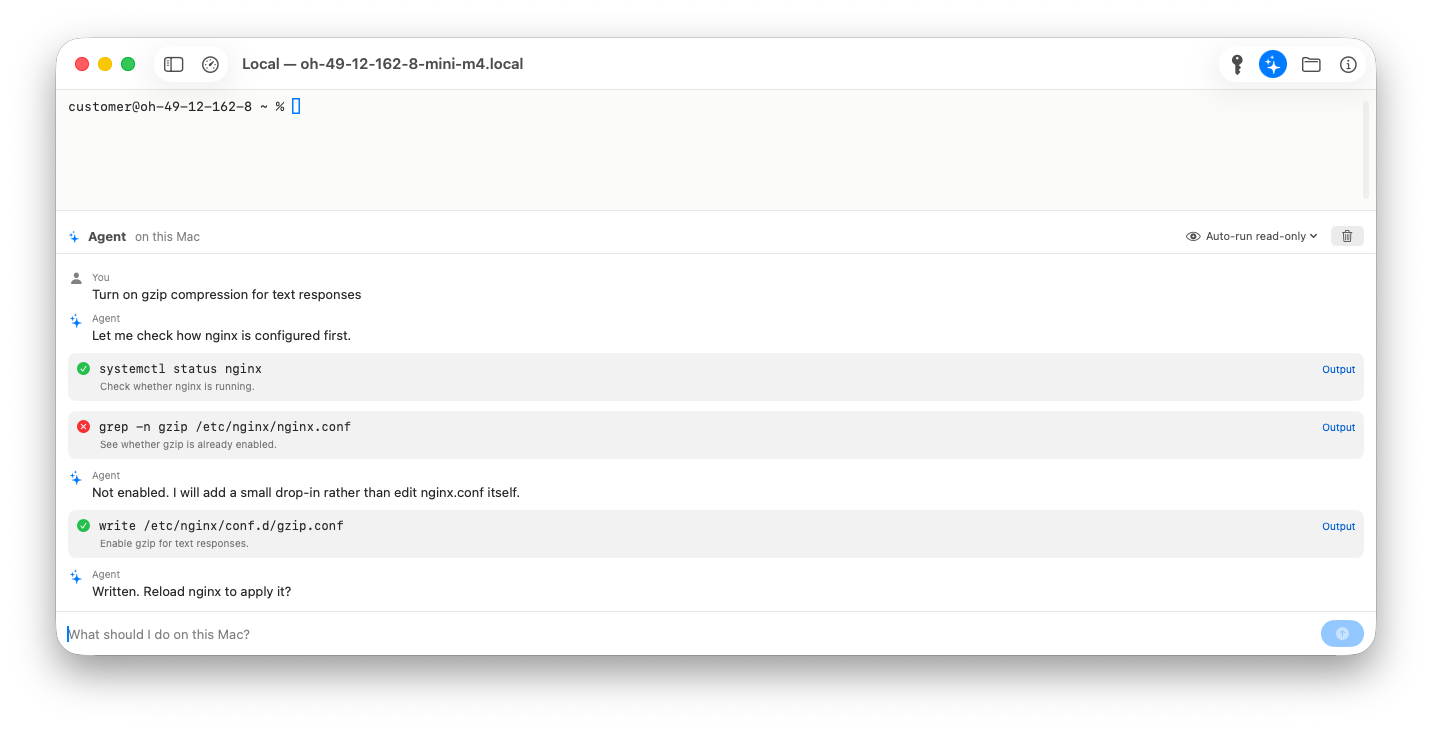
While the agent is working the send button becomes Stop. Clear (the trash button) discards the conversation and starts over — including any commands you had allowed for the rest of it.
Drag the panel’s top edge to make it taller or shorter; the height is remembered across sessions and relaunches.
Deciding what runs without asking
The menu in the panel header sets the permission mode, and you can change it at any point in a conversation — it applies to the next command the agent proposes:
- Ask every time — every command waits for your approval, including harmless ones like
ls. - Auto-run read-only — the default. Inspecting the host runs freely; writes, installs and
sudoask first. - Auto-run everything — the agent works unattended. Only catastrophic commands stop for approval.
“Read-only” is judged conservatively. A command counts only when every stage of it is recognised, so a pipeline into an unknown tool, anything using command substitution, and any redirection into a real file all fall through to asking rather than running.
Settings… → Agent sets the mode new conversations start in. Each session can still switch on its own.
Approving a command
When a command needs approval a sheet appears naming the host and why the agent wants to run it. The command is editable — change it and approving runs exactly what the field says, not what the agent asked for.
- Approve (↩) runs it once.
- Always Allow … stops asking about that command for the rest of the conversation. It allows the command by name, so allowing
apt-getallows every laterapt-get. - Deny (⎋) refuses it. The agent is told you declined and will ask what you would prefer — it does not try to route around you.
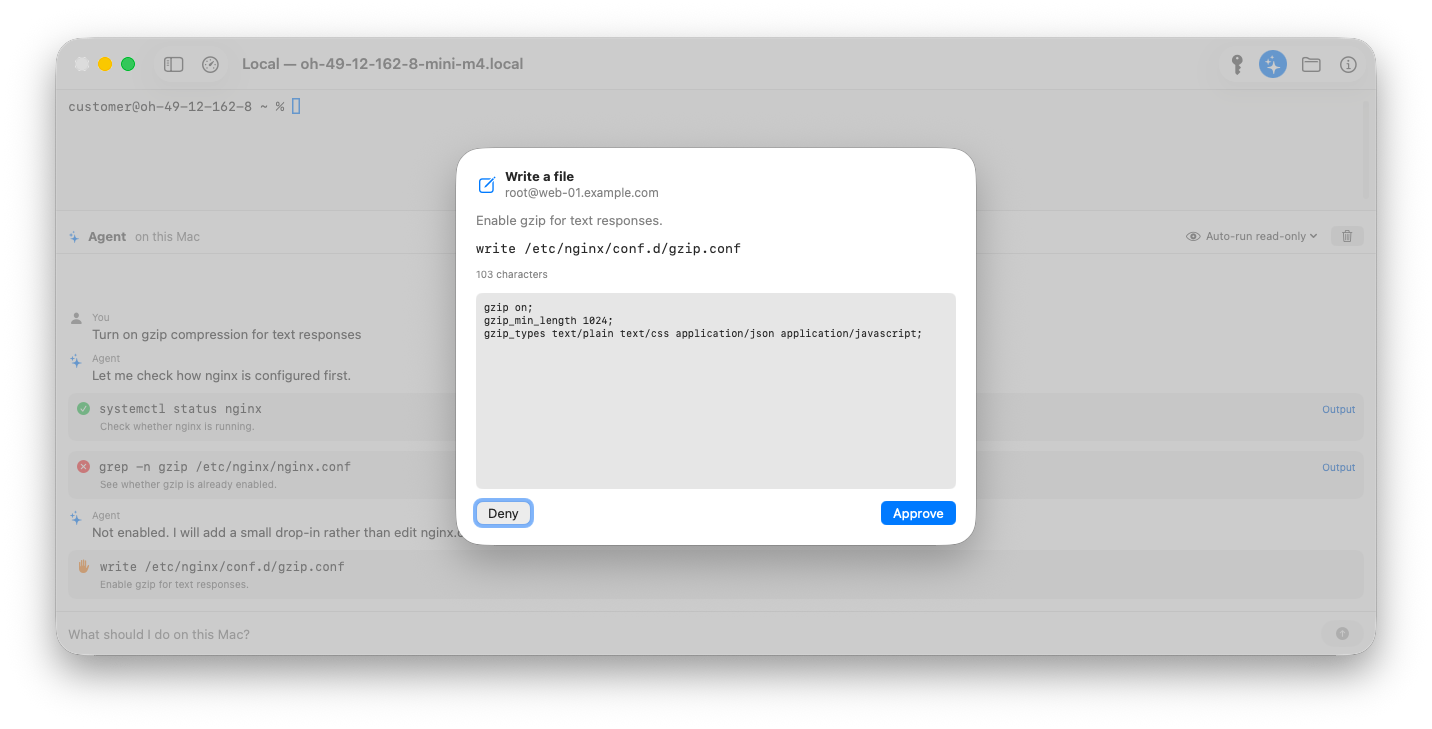
Writing a file always asks, whatever the mode. That sheet is titled Write a file and shows the complete contents, so you approve something you can actually read.
Where the commands actually run
The agent’s commands do not go through the terminal you are looking at. They ride the same connection over a second channel, which is how it gets exact exit codes and clean output instead of text scraped from around your prompt.
That channel is a separate shell, so it shares nothing with your session: no aliases, no shell functions, no exported variables — and no terminal, which means anything that wants to prompt you cannot work there. Commands do run in the session’s current directory, and if that directory can’t be entered the command is abandoned rather than run somewhere else.
So that the work still leaves a trace where you are watching, every command the agent runs is echoed into the terminal’s scrollback, dimmed:
⏵ systemctl status nginx — exit 0
⏵ grep gzip /etc/nginx/nginx.conf — exit 1
⏵ write /etc/nginx/conf.d/gzip.conf — denied
These lines are written to the display only — nothing is sent to the shell. If one arrives while you are half-way through typing a command, your prompt line will look odd until the next ↩ redraws it.
Commands that need your terminal
When something genuinely needs the interactive session — sudo
that must prompt for a password, an installer that asks questions, a
full-screen program — the agent asks to run it in your terminal instead. That
sheet is titled Run in your terminal session and its button
says Run in Terminal; approving types the command into the
session and presses ↩.
This is the only thing in OliTerm that ever presses Return for you, and only for a command you approved by name. The agent does not see the output — you do, so tell it what happened if it needs to know.
sudo without a
password let the agent do privileged work on its own. Otherwise expect it to
hand sudo commands to your terminal so you can type the password.Working across hosts
The agent is not confined to the tab it lives in. It can reach this Mac and every host that has an open session, and one conversation can move between them — so you can ask it to compare a setting on two servers, or roll one change out to all of them:
- “Compare the SSH server configuration across all open hosts”
- “Install my SSH public key on every open host”
- “Is the timezone on do-fra the same as here?”
Every command names the host it ran on: the approval sheet says so, and in
the transcript a command that ran somewhere other than this tab’s host is
prefixed with that host’s name. The permission mode and Always
Allow apply to the whole conversation, on every host it touches —
allow apt-get once and a roll-out across five servers asks no
further. Each host is echoed into its own terminal’s scrollback, so
the trace is where the command actually ran.
local; if two tabs are
open to the same host, either connection is used.Sharing terminal context
Include recent terminal output in requests (Settings… → Command Assistant, off by default) also applies here: it lets the agent see what is on your screen, so you can say “fix that”. Leave it off if the session may show something you don’t want sent to Anthropic’s servers.
Usage and what’s left
Once a conversation has made a request, a line along the bottom of the panel shows what it has used:
48.2K in · 3.1K out · ≈ $0.32 · 151.8K input tokens left · resets in 47s- in / out — tokens sent and received in this conversation. Clear resets them.
- ≈ cost — an estimate from Anthropic’s published per-token rates for the selected model. The API does not report what a request cost, and rates change; treat the figure as a guide, not a bill. Models without a known rate show no figure rather than a wrong one.
- left / resets in — your remaining rate-limit quota as the API reported it on the last response, showing whichever limit is closest to running out and when it refills. This is live, not estimated.
Limits
- The agent takes at most 40 steps per message; send another message to continue.
- A single command is given five minutes, then it is terminated.
- Long output is truncated before the agent sees it — the full text is still under Output in the transcript.