
The file browser
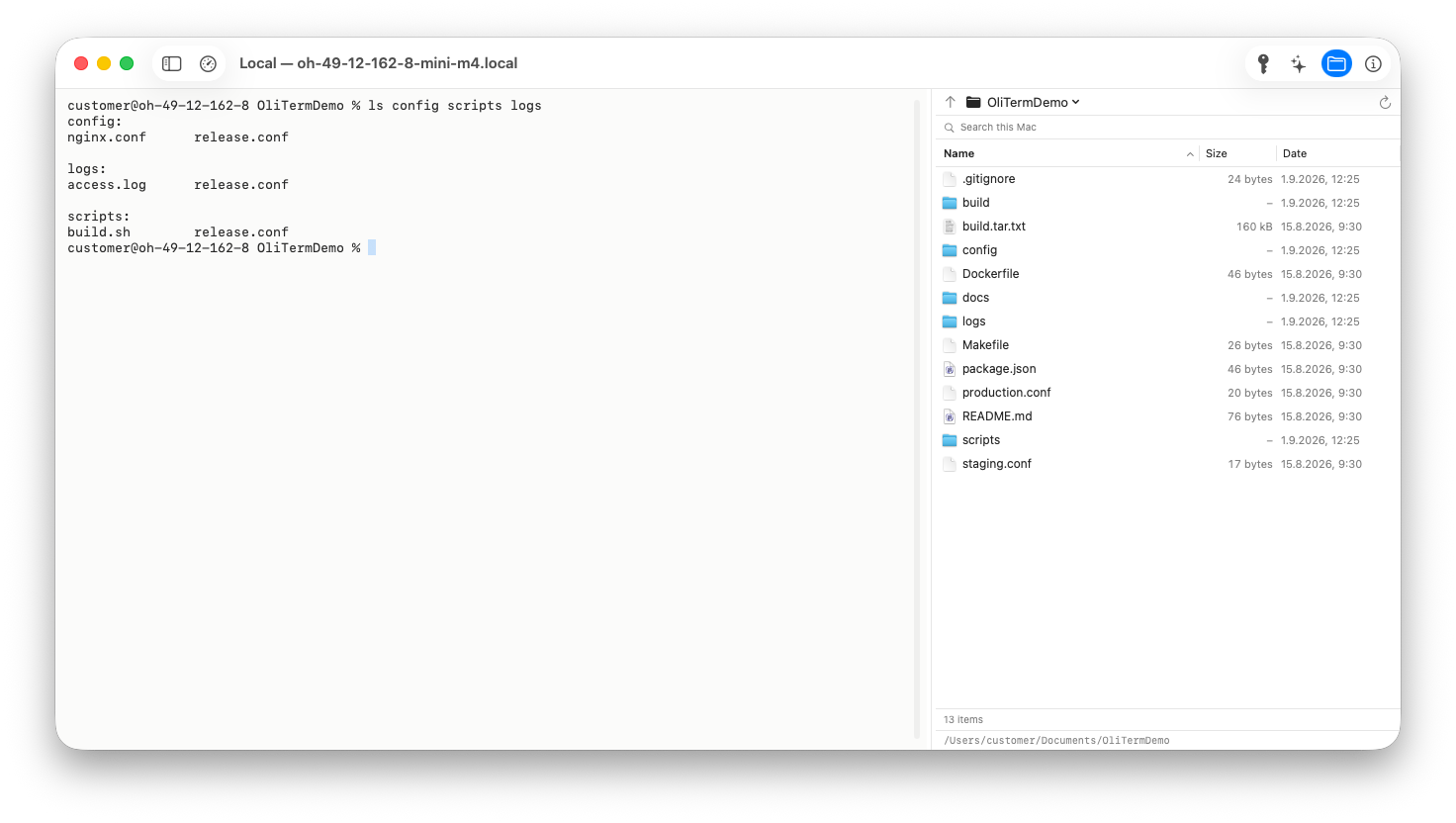
The file browser is a Name/Size/Date listing to the right of
the terminal. It works for local and SSH sessions and follows your
shell around as you cd.
Toggle it with the Files toolbar button or View > File Browser (⌥⌘F) — it’s on by default. Drag the divider between terminal and pane to resize it; the width is remembered.
Navigation
- The folder menu in the pane’s header shows the current folder; click it for the full path with every enclosing folder.
- The ↑ button goes to the enclosing folder; ⟳ reloads the listing and recalculates folder sizes.
- Double-click a folder to open it. Sort by clicking the Name, Size, or Date column headers; type a name to jump to it.
Folder sizes
Folders don’t list a size of their own, so the pane works it out in the
background: the Size column shows … while a
folder is being measured and fills in as each one finishes — a few at a time,
so one huge folder doesn’t hold up the rest. The figure is the space the folder
takes on disk, as du reports it, measured the same way on this Mac
and over SSH, and at low priority so it doesn’t compete with you or the host.
- ≥ 45 GB means some folders inside couldn’t be read — the real size is at least that.
- Sizes are kept while the tab is open, so the listing doesn’t measure again every time it refreshes itself. ⟳ or Refresh in the context menu measures the subfolders afresh.
- Leaving a folder stops the measuring still under way there.
- Sorted by Size, measured folders take their place among the files.
The pane and the terminal stay in sync
cdin the terminal and the pane follows automatically.- Navigate in the pane and OliTerm runs the matching
cdin the terminal (keyboard focus stays in the pane). - Local listings refresh by themselves when the folder changes on disk.
On SSH hosts, following the terminal requires the host to report its directory. If the footer shows “Directory sync needs shell integration (Shell menu)”, install it once — see Uploads & shell integration.
Using files in commands
Double-click a file (or choose Insert Path in Terminal) to type its shell-quoted path into the terminal — build the command around it and press ↩ yourself. Copy Path puts the path on the clipboard instead. Both work on multi-selections.
Transferring files
- Upload: drop files from the Finder anywhere on the pane — they’re uploaded (local sessions: copied) into the listed folder.
- Download anywhere: drag rows out of the pane and drop them in the Finder — remote files are copied straight to where you drop them.
- Download to Downloads: right-click and choose Download — files land in your Downloads folder and are revealed in the Finder.
Transfers use scp over the session’s own connection — no second
login, and it works on password-authenticated hosts. Progress and results show
in the pane’s footer.
Editing files
- Edit types
nano '<path>'into the session and runs it — quick edits without leaving the terminal. - Edit in BBEdit opens local files directly. Remote files are downloaded to a private working copy and opened in BBEdit; every time you save, OliTerm uploads the file back to the host automatically. Invoking it again on the same file just brings BBEdit forward — your unsaved changes are safe.
The path bar
The bar along the bottom of the pane shows the full path of the selected file, the number of items when several are selected, and the folder you are in when nothing is. The text can be selected and copied, and hovering shows the whole path when it is too long to fit.
Get Info
Select a file and choose Get Info (or press ⌘I / click the File Info toolbar button) to open the inspector: kind, symlink target, location, size, dates, link count, and permissions — the mode string with its octal value, owner, and group.
For a folder, the inspector shows its size on disk — Calculating… until it is measured. A folder you inspect is measured right away rather than waiting its turn.
This works for search results too. Those arrive without details — OliTerm does not stat 500 files to fill a table — so selecting one fetches them for that file alone, and the inspector briefly says Reading details… while it does.
Quick Look
Select a file and press Space, or choose Quick Look from the context menu, to look inside it without opening anything. Press Space again to close.
Local files preview straight from disk. Remote files have to reach your Mac first — Quick Look can only preview real files — so OliTerm fetches them:
- Files up to 16 MB come over whole, so images, PDFs and archives render properly.
- Anything larger is only fetched as far as its first 256 KB, and only if it is text. That is what makes previewing a multi-gigabyte log instant instead of a download; the footer says how much you are seeing.
- A large file that is not text isn’t transferred at all — use Download instead.
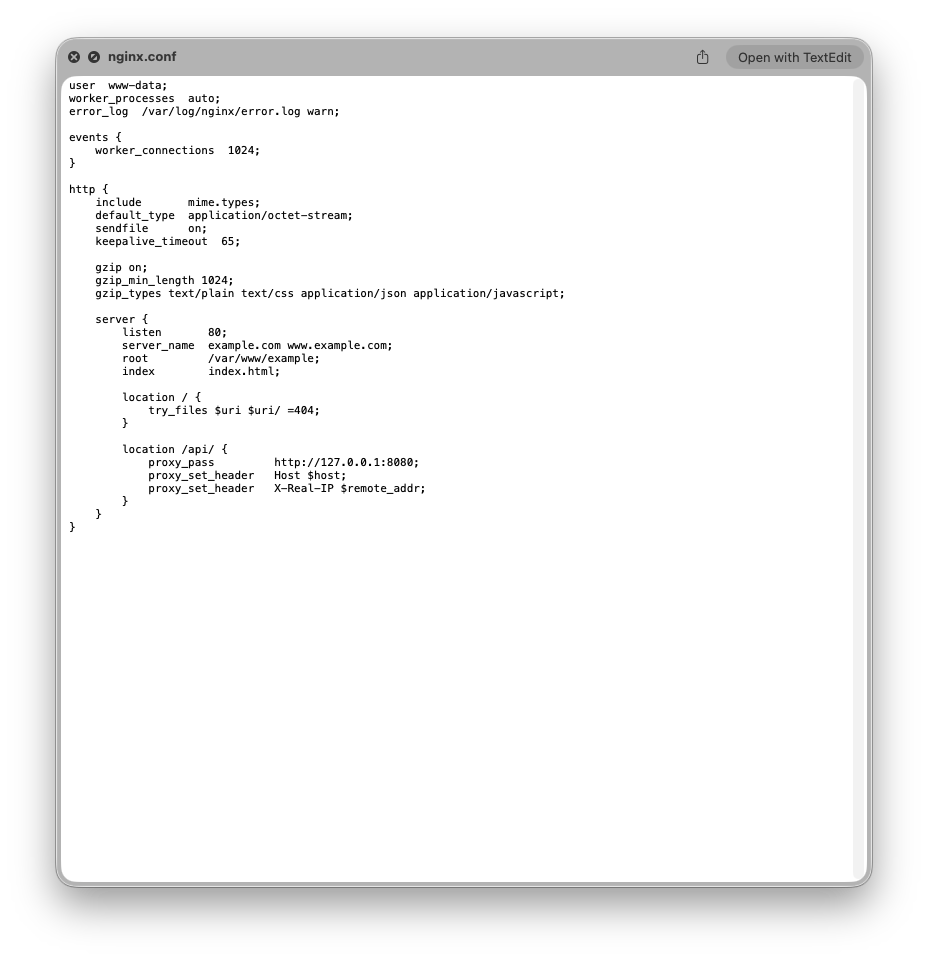
nginx.conf previewed in place. Quick Look has no renderer for
.conf, so OliTerm shows it as text — the title still says nginx.conf..zshrc, .gitconfig, hosts,
Makefile — would come up as a blank page. OliTerm previews those
through a temporary .txt copy instead. Your real file is never
renamed, and the preview still shows its true name.Preview copies live in a temporary folder and are deleted when the tab closes.
Searching the whole host
The search field above the list — Search this host, or Search this Mac on a local session — searches the entire host, not the folder you are looking at. Type and press ↩; press ⎋ or click the ✕ to go back to browsing. Results show full paths, and double-clicking one jumps to its folder with the file selected.
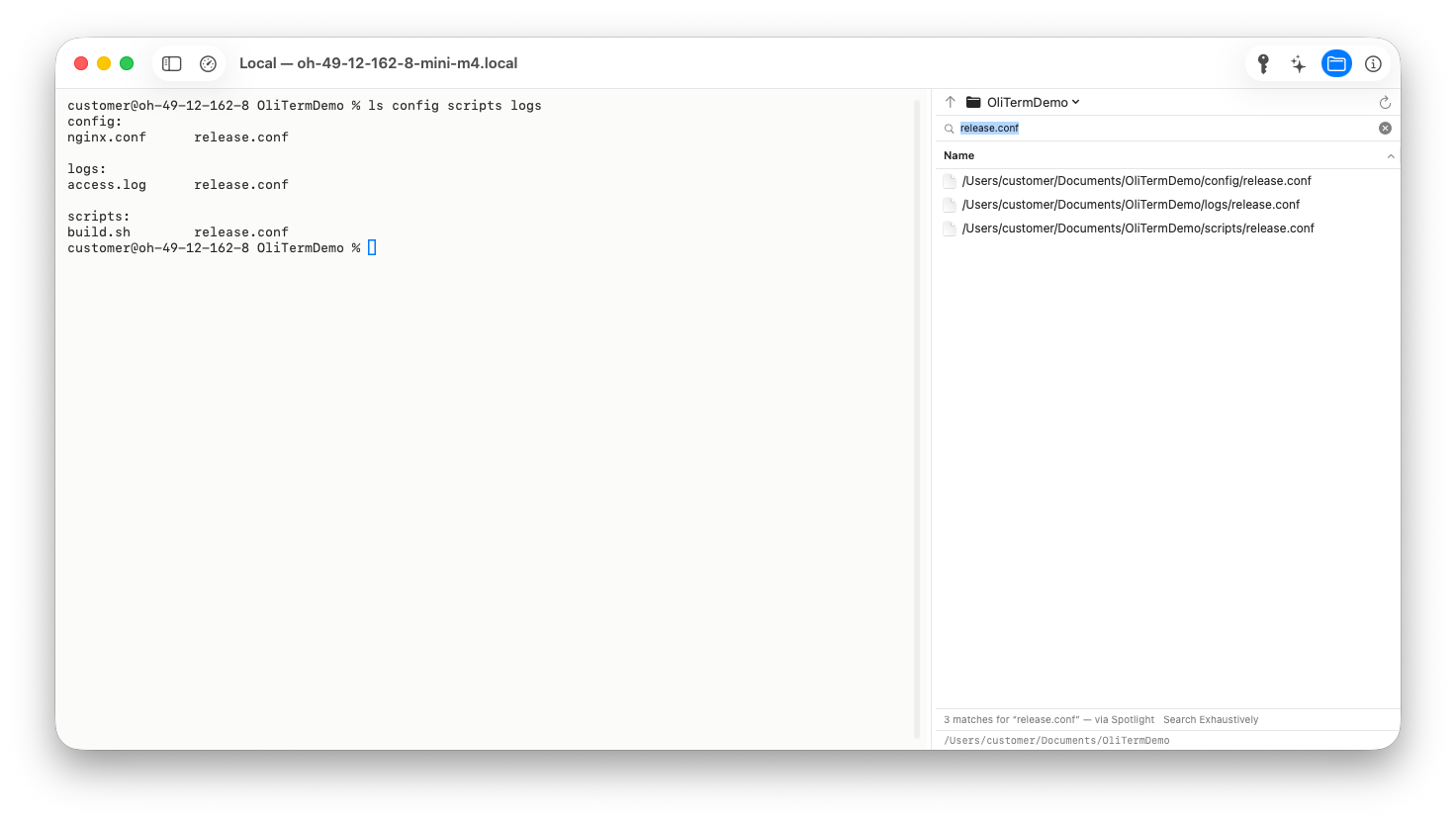
To work with a result where it lives, choose Go to Enclosing
Folder from its context menu (or double-click it). The pane leaves the
results, opens that folder with the file selected and scrolled into view — and
because navigating the pane also types cd into the session, your
shell ends up there too.
OliTerm uses the fastest index the host actually has, and the footer always says which one answered:
| Backend | When it is used |
|---|---|
| Spotlight | macOS hosts (and your Mac) — via mdfind |
| plocate / locate | Linux hosts that have one installed |
| find | Anything else — scans the filesystem, /proc, /sys and /dev skipped |
locate and plocate answer from a database that is
usually rebuilt once a day, so results can be stale and may list files that
have since been deleted. That is why the footer names the backend. When it
matters, click Search Exhaustively to rerun the search with
find, which reads the disk as it is right now — expect it to take
minutes on a large host.Searches stop at 500 results, and a running search can be stopped at any time with the Stop button.
Context menu reference
| Command | What it does |
|---|---|
| Open | Opens the selected folder in the pane |
| Go to Enclosing Folder | Search results: opens the file’s folder with it selected, and cds the session there |
| Quick Look | Previews the file without opening it (Space) |
| Edit | Types and runs nano on the file in the session |
| Edit in BBEdit | Opens the file in BBEdit; remote saves upload back automatically |
| Insert Path in Terminal | Types the shell-quoted path(s) — never runs anything |
| Copy Path / Copy Paths | Copies the full path(s) to the clipboard |
| Download | SSH sessions: copies the selection to Downloads and reveals it |
| Get Info | Shows the info inspector (⌘I) |
| Refresh | Reloads the listing and recalculates folder sizes |